









Want to make a QR code quickly? We’ve got you covered! Follow these simple steps to create your own QR code in no time, or use our quick link for an instant solution.
By clicking the link, you’ll get a copy of the file. Then, just enter the URL you want, and a QR code will be made for you automatically.
After your QR code is ready, you can copy and paste it into any app you like.
QR Codes in Google Sheets
💡Make sure you’re logged into your Google account. This is essential for saving your work in Google Drive.
Step 1: Set Up Your Spreadsheet
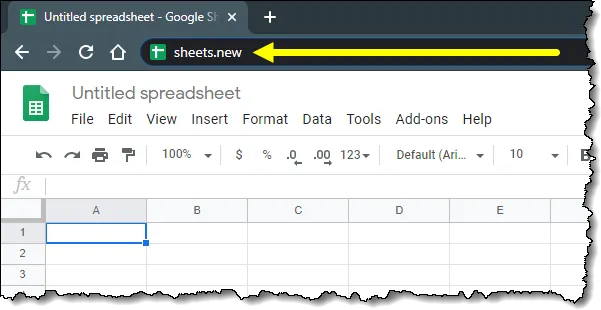
Open a new Google Sheets workbook by typing “sheets.new” in your web browser’s address bar.
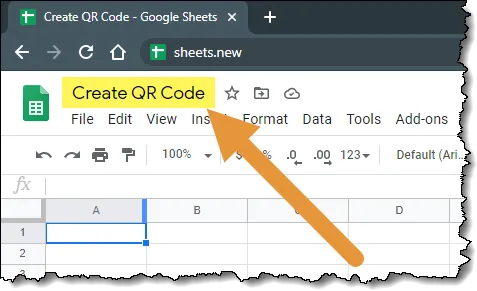
A new sheet will open. Rename your new sheet from “Untitled spreadsheet” to something more descriptive by clicking on the title.
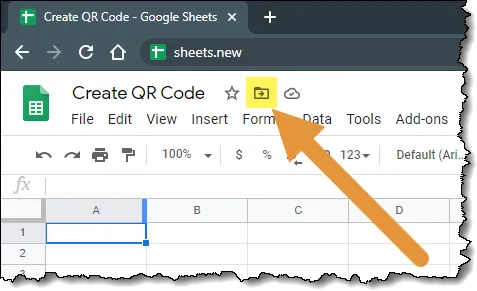
Decide where in Google Drive you’d like to keep this sheet. If you’re not happy with the current location, click the “Move” option to place it where you prefer.
Step 2: Organize Your Links
Start by listing the URLs you want to turn into QR codes in a column of your spreadsheet.

Step 3: Writing the Formula for the QR Code Generator
While Google Sheets doesn’t have a built-in function to create QR codes, you can utilize the IMAGE function in combination with an external QR code generation service. Here, we’ll use the popular ‘qrserver.com‘ API to generate QR codes directly within your spreadsheet.
Constructing the QR Code Formula
1. Set Up the API URL
The basic structure for the qrserver.com API to generate a QR code is:
https://api.qrserver.com/v1/create-qr-code/?size=150x150&data=- Here, size specifies the dimensions of the QR code (e.g., 150×150 pixels), and data is the URL you want to encode.
2. Write the IMAGE Function in Google Sheets
- In your Google Sheets, select the cell where you want the QR code to appear (for example B4).
- Enter the following formula:
=IMAGE("https://api.qrserver.com/v1/create-qr-code/?size=150x150&data=" & ENCODEURL(D4))- Replace D4 with the cell reference that contains the URL you want to convert into a QR code.

- After you press Enter the QR code will appear in the cell.
3. Adjusting QR Code Size and Quality
To adjust the quality and size of QR codes from qrserver.com, use URL parameters. Increase pixel dimensions in the API call to keep the codes clear in Google Sheets.
For example, if you change the size to 300×300 pixel, the QR code will stay clear even when enlarged.
=IMAGE("https://api.qrserver.com/v1/create-qr-code/?size=300x300&data=" & ENCODEURL(D4))After placing the QR code in the sheet, adjust the row to be taller and the column to be wider. This will better display the larger image. This doesn’t change the QR code’s resolution but adjusts how much space it occupies on your sheet.

4. Apply to Multiple Cells
If you are making QR codes for many links, you can drag the cell with your formula down to other cells. This will repeat this setup.

Bulk QR Code Generator: Create Multiple Codes
Creating multiple QR codes in a Google Sheets document can be more efficient if you use a consistent setup. Here’s how to set up your sheet for bulk QR code generation:
Step 1: Centralize Your API URL
- Select a cell to store your QR code API URL. For instance, use cell A1.
- Enter the base URL for the QR server API in this cell
https://api.qrserver.com/v1/create-qr-code/?size=300x300&data=- Naming this cell can simplify your future formulas. Right-click the cell, click on “View more cell actions”, choose “Define named range,” and name it QRCodeBase.

Step 2: Simplify Your Formulas
Instead of writing out the entire URL each time, you can now use the named range in your formula.
For a URL in cell D3, your formula in B3 would look like this:
=IMAGE(QRCodeBase & D3)
- This setup means you only need to enter or update the URL in column D, and your QR code will automatically update in column B.
- Drag down the formula in column B to generate QR codes for multiple URLs listed in column D. Each row will automatically reference the API URL and the corresponding website URL to create a QR code.

Using the QR Codes in Other Applications
Once you have generated QR codes in Google Sheets, you may want to use them in other programs or documents.
Here’s a simple way to do this using the snipping tool in Windows:
Capture the QR Code
- Open the Snipping Tool on your computer. You can find it by searching for “Snipping Tool” in the Start menu.
- Use the Snipping Tool to select and capture the QR code from your Google Sheets.

Paste the QR Code
- After capturing the QR code, switch to the app where you want to use the code. This could be a Word document, an email, or a presentation.
- Press ‘Ctrl + V’ to paste the QR code.
This method lets you easily transfer QR codes to any app. It will enhance your presentations, marketing materials, or other documents
Learn More:
For a more detailed guide on using the Snipping Tool, check out our full article here. We’ll walk you through all the features and tips to make the most of this handy utility.
Download the QR Code Generator
Grab your own copy of the file HERE.


Leila Gharani
I’ve spent over 20 years helping businesses use data to improve their results. I've worked as an economist and a consultant. I spent 12 years in corporate roles across finance, operations, and IT—managing SAP and Oracle projects.
As a 7-time Microsoft MVP, I have deep knowledge of tools like Excel and Power BI.
I love making complex tech topics easy to understand. There’s nothing better than helping someone realize they can do it themselves. I’m always learning new things too and finding better ways to help others succeed.